


Inhaltsverzeichnis
Important
Effective immediately, VPN access now supports authentication with your LoginID and a time-based one-time password (TOTP). Password-based authentication will no longer be available starting October 1st, 2026. To establish a connection, enter the security code from your authenticator app instead of your password.
To use TOTP, you must enable two-factor authentication (2FA) for your RUB account in the Identity Management system and configure an authenticator app.
If you need further assistance, or are stuck, you can always contact the IT.SERVICES servicecenter via:
OpenVPN configuration under Windows
For an OpenVPN client configuration under Windows, please either follow the short guide or the detailed guide.
Short Guide
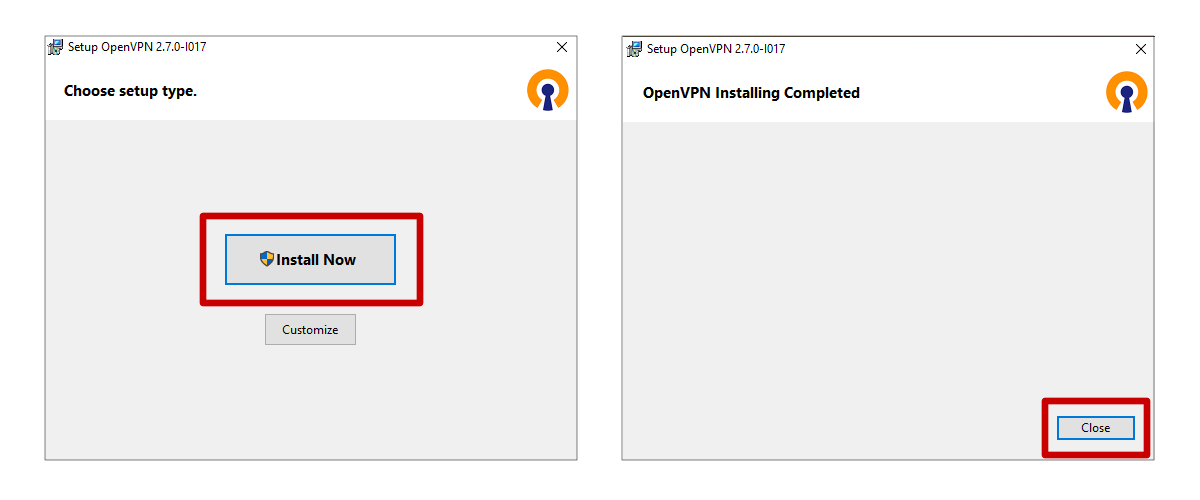
- Download and run the OpenVPN Installer.
- Open the OpenVPN application. Once started, you will find the icon on the right in your task bar.
- Download and import the configuration file.
- Select the OpenVPN icon in the system tray to connect and disconnect.
- To connect, enter your LoginID and security code (TOTP).
☝ Note: If you see red marked lines during the connection establishment, this is not a safe indication of connection errors.
In case that no connection is established, you will find the FAQ - Frequently Asked Questions here.
Detailed Guide
Software download
Download the current OpenVPN for Windows:
Select the latest version of the installer for your operating system and download it.
Installation
Run the installer and complete the installation.
Configuration
- Download the configuration file: RUBvpn_Standard.ovpn – save it in your download directory
- As soon as OpenVPN has been started, the icon appears on the right side in the system tray.
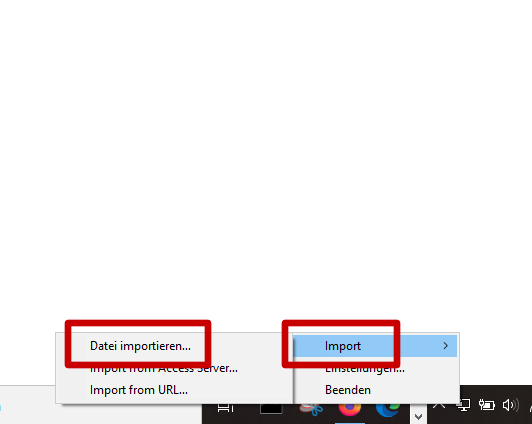
- Right-click on the OpenVPN icon in the system tray and select Import → Import file…
- Select the configuration file you just downloaded to import it.
If you cannot download the configuration file or if it is displayed directly in the browser window, you can download it via the context menu (opens by right-clicking on the download link) and then via „Save target as“. Some browser does not offer this option. In this case you will have to use a different browser.
Connecting and disconnecting
- Start the OpenVPN client. The small OpenVPN symbol now appears on the right side in your system tray.
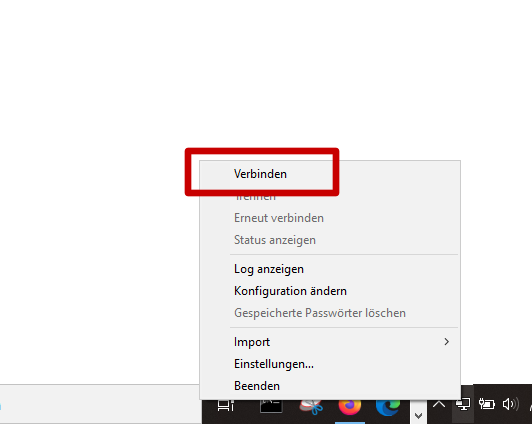
- Right-click on it and select Connect to start the connection.
| Username | your LoginID |
|---|---|
| Password | security code (TOTP) |
To disconnect, right-click the OpenVPN icon again and select Disconnect.
Update configuration
Download the current configuration file.
It is necessary to delete old configuration files, preferably before you import a new one. To do this, go to the following two folders and, if available, delete all configuration files:
- C:\Users\*USERNAME*\OpenVPN\config (Please make sure that you select the user name that has administrative rights.)
- C:\Program Files\OpenVPN\config (Select the hard disk on which you have installed OpenVPN, it does not necessarily have to be called „C:“.)
Then import the current configuration file again via the context menu (right-click on the OpenVPN icon on the right in the system tray) via Import.
Frequently Asked Questions
In case that no connection is established, you will find the FAQ - Frequently Asked Questions here
Many thanks to Michael Szybko and a reseach group of the faculty of chemistry and biochemistry for the translation of this page.